
Product Filtering Tutorial
Our product catalog is broken up into 3 different levels. Primary Category --> Secondary Category --> Tertiary Category. This tutorial will explain how to easily use the internal product attribute and category filtering options on the left side of screen of project list view pages.
Using Product Filtering
Go to the websites main navigation. You will be able to select primary or sub navigation links to view product list view pages. Each product type has a different set of attributes and filters related to that product type that will show on the left side of product list view pages. Systems and Bundled products also include a AHRI # search function to specific narrow down results by AHRI #.
Applying Filters
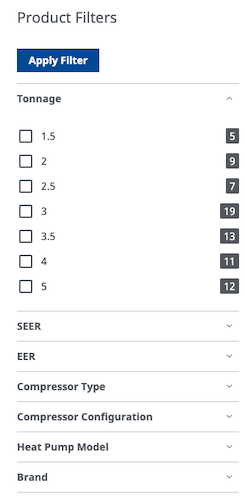
Users are able to select one or multiple filters at one time and click "Apply Filter". The filtered results will then show in the right side of the screen. Users can quantity of products inside a filter by viewing the number inside the green box.
Updating / Resetting Filters
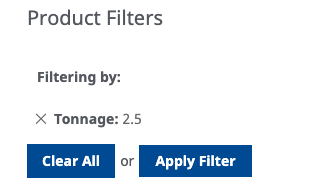
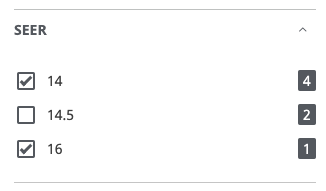
Filters can be updated by changing the selected check boxes in the filter section, then clicking "Apply Filters". Users can also reset all filters by clicking "Clear All".