
Manage Profile Tutorial
Managing your profile and addresses can be done from the "My Account" in the website header. Users will be able to view their dashboard as well as manage account information and company shipping addresses.
In order to take advantage of this functionality, you'll need to be signed into your account.
Dashboard
The Dashboard is the main page of your account section. Users are able to see quick views of their recent orders, account information and account summary. Users then can select from the left navigation to access other account features.
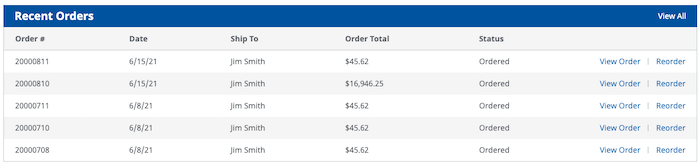
Recent Orders
Users are able to view their 5 most recent orders for your companies account. These include online and offline orders.
Account Information
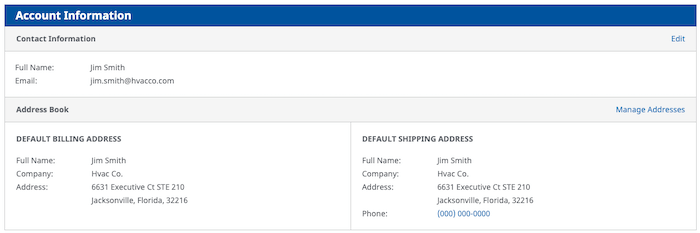
The account information section of your profile will display your contact information, including email and password. To edit, click on the "Edit" button to right of contact information. Users can manage their shipping addresses by selecting "Manage Addresses" to the right of the address book section. To change your companies billing address, please contact your store account manager.
Account Summary
Account Summary displays the overall billing summary of the companies account. This data is real-time on page load.

Profile
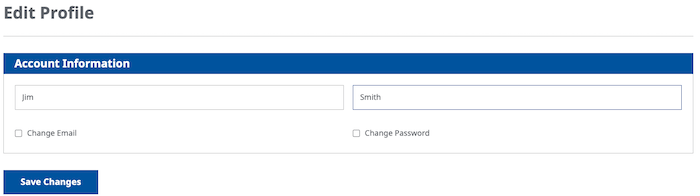
The profile allows users to view and change their name and account password. To change email, click on  . To change password, click on
  . Minimum length of this field must be equal or greater than 8 symbols. Leading and trailing spaces will be ignored.
Address Book
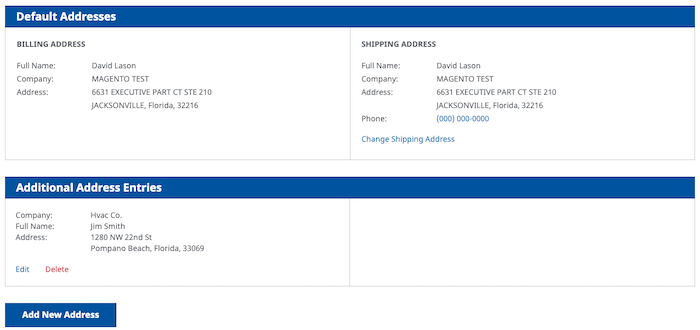
The address book will show your default billing and shipping addresses as well as any other secondary shipping addresses. Users are able to manage shipping addresses as well as change default shipping address.
Add Address
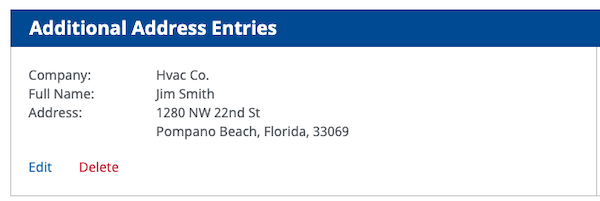
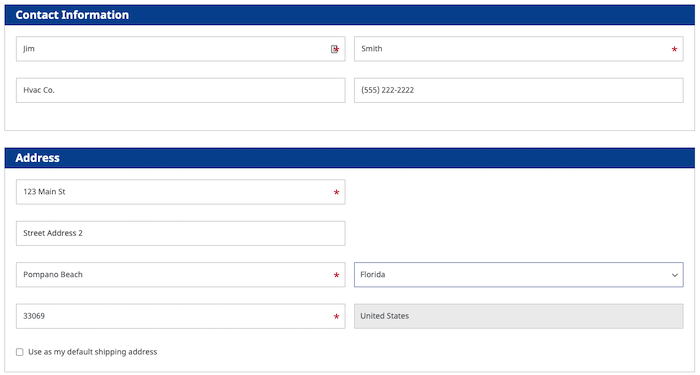
To add a new address, click on "Add New Address" button at bottom of screen of address book. Users can change the default shipping address by selecting "Use as my default shipping address at the bottom of the form. This will make new address default while moving other address to the "Additional Address Entries" section.
Edit/Delete Address
To add, edit or delete shipping address the the user will goto the "Additional Address Entries" section and click "Edit" or "Delete" link under each address.