
Checkout Tutorial
Our One Page Checkout is a one-step checkout module, that allows our customers to make a purchase faster and easier by providing a single form for checkout.
Our single page checkout module consists of six areas that we describe below and what is needed to complete your order.
All steps below are also shown on our order email you will receive once you submit a order.
Step 1 - Billing Information
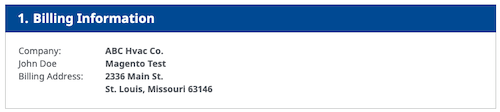
The first section will display your distributor that your account is associated with. This this not editable and is just for your reference.
Step 2 - Fulfillment Method
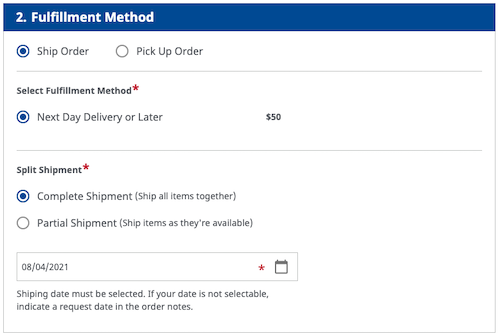
UPS is our shipping method of choice. We provide LTL Freight and UPS shipping options as well as store pick up.
The price is calculated based off of the fulfillment address listed in step 3.
Step 3 - Fulfillment Address
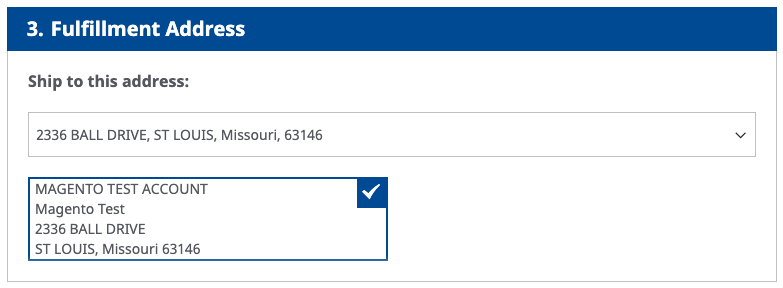
The fulfillment address displays your default shipping account address. You may select this or also can choose another address from the dropdown.
If you need to add a new shipping address, select "New Address" option from the ship to this address section.
A pop-up form will appear and you can enter a new address as needed. Once the new address is saved, you can then select it from the dropdown.
Based on the address selected, the website will calculate updated shipping charges.
Step 4 - Payment Method
We accept credit line and credit card transactions as well as pay at pick up option. If credit card is selected, you will need to select the type of credit card entered and fill out the form completely.
Please make sure your billing zip code matches your credit card one that is all file with your banking institution.
We accept the following credit cards:


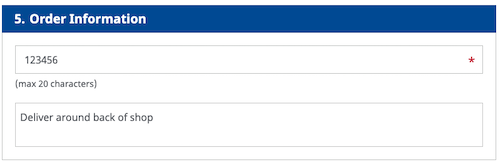
Step 5 - Order Information
Step 5 includes the Purchase Order "PO Number" that you entered on the previous shopping cart screen. This can be changed on this step. PO Number is required. Please note that PO Numbers are only (alpha-numeric) characters; up to 20.
The second area is the "Order Notes" section. They're passed with the order.
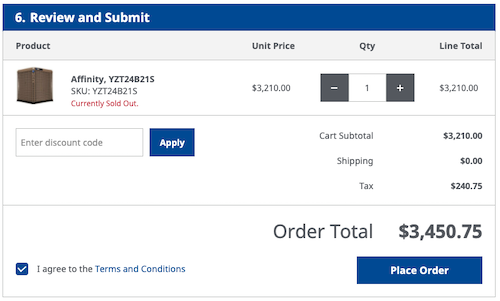
Step 6 - Review & Submit Order
Once all the previous 5 steps are complete, it is time to review the final step. Here you will see all the products, prices and any shipping and taxes added as well.
You are able to review update any section needed before submitting the order.
Step 7 - Order Success Page
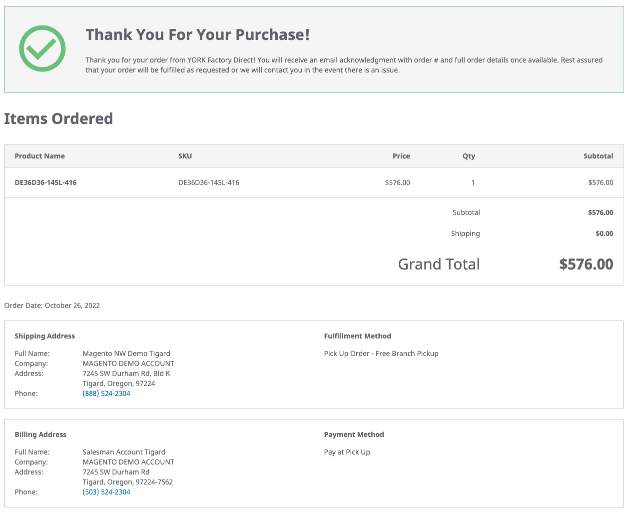
After submitting the order you will receive a success screen, which will show all details related to the submitted order. Short after, once order is submitted to the store, you will receive a order email that includes order number and related order details.
If there was a issue with the order, instead you will instead receive a email explaining to contact the store about the order.